DUCKTECH GateWay System Manual
This guide explains how to configure the DUCKTECH GateWay System in Roblox Studio: getting started, adding destination Places, configuring Gamepasses, and finding the correct Place ID. DUCKTECH GateWay System dashboard First Steps Before yo
This guide explains how to configure the DUCKTECH GateWay System in Roblox Studio: getting started, adding destination Places, configuring Gamepasses, and finding the correct Place ID.
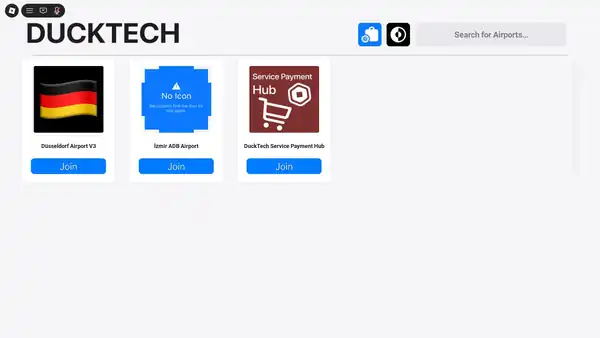
First Steps
Before you start, make sure you have the following ready:
- A Roblox Place or its Place ID.
- HTTPS-Services On, as specified in the supplied manual.
When you open the game in Roblox Studio for the first time, the interface should look similar to the screenshot below.
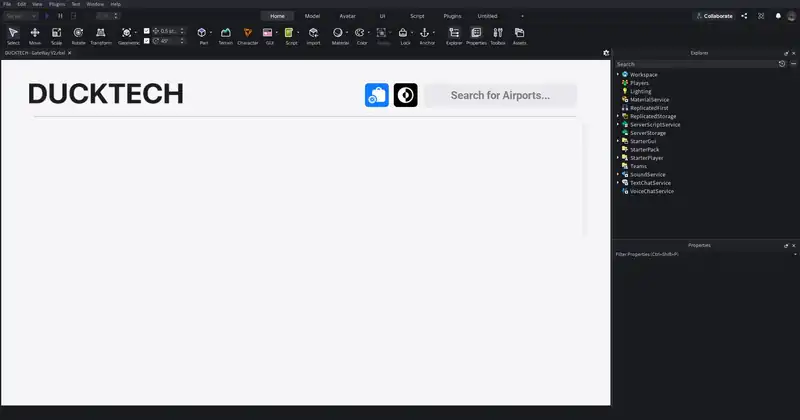
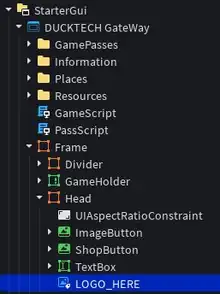
You can customize the logo. However, the logo colours should remain unchanged so that the built-in light and dark modes continue to work correctly. The logo image is located at StarterGui > DUCKTECH GateWay > Frame > Head > LOGO_HERE.
Setting up Places
A Place is a game that is published as part of another Roblox experience. For each destination, you need the destination's Place ID.
- In Roblox Studio, expand the Places folder.
- Select Place 1.
- In Properties, change its Value to your destination Place ID.
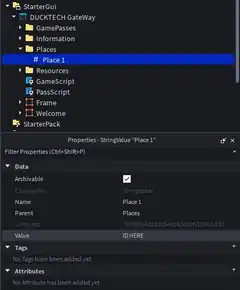
To add more destinations, duplicate the existing Place entry using Ctrl + D. Rename it with the next number (for example, Place 2) and set its Value to the corresponding Place ID. The system can also use an Experience ID for teleporting, as stated in the original manual.
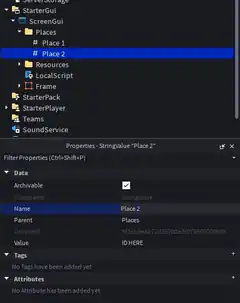
Do not change any other settings in these entries.
Setting up Gamepasses
The GateWay System supports Gamepasses, which are one-time purchases. Developer Products do not work with this system.
- Expand the GamePasses folder.
- Select Pass 1.
- In Properties, change its Value to the relevant Gamepass ID.
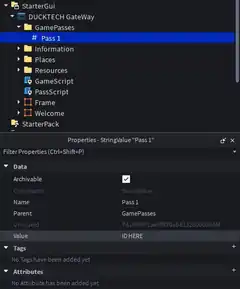
To add more Gamepasses, duplicate the entry using Ctrl + D, rename it with the next number (for example, Pass 2), and set the Value to the corresponding Gamepass ID. Developer Products remain unsupported.
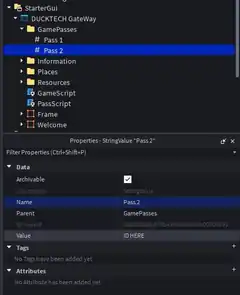
Do not change any other settings in these entries.
Creating a Place and finding its Place ID
- Open the Roblox Creator Page for your hub game in a web browser.
- Select Places in the creator dashboard.
- From there, you can create a Place or view the Places that already belong to the experience. The main Place is marked with a star.
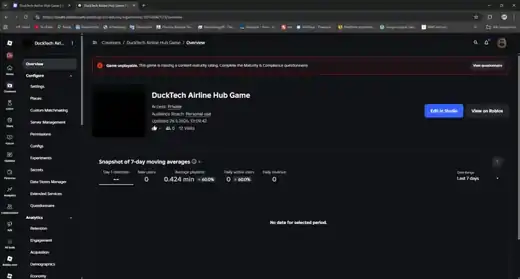
Open the destination Place's settings and locate its Place ID.
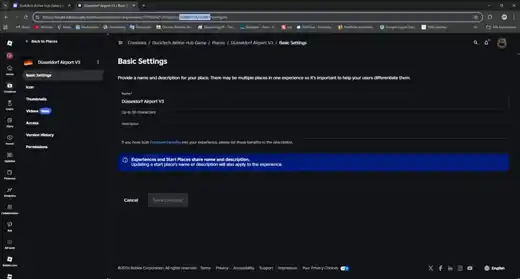
Use the Place ID marked for that destination. Do not use the ID of the main game/experience instead; the original manual notes that using the main game ID will not teleport to the intended destination Place.
You can find additional tutorials on YouTube for creating Places or converting an existing game into a Place.
Support
If you need assistance with the GateWay System, contact @DuckTech Support.
This guide has been prepared from the supplied DUCKTECH GateWay System Manual.